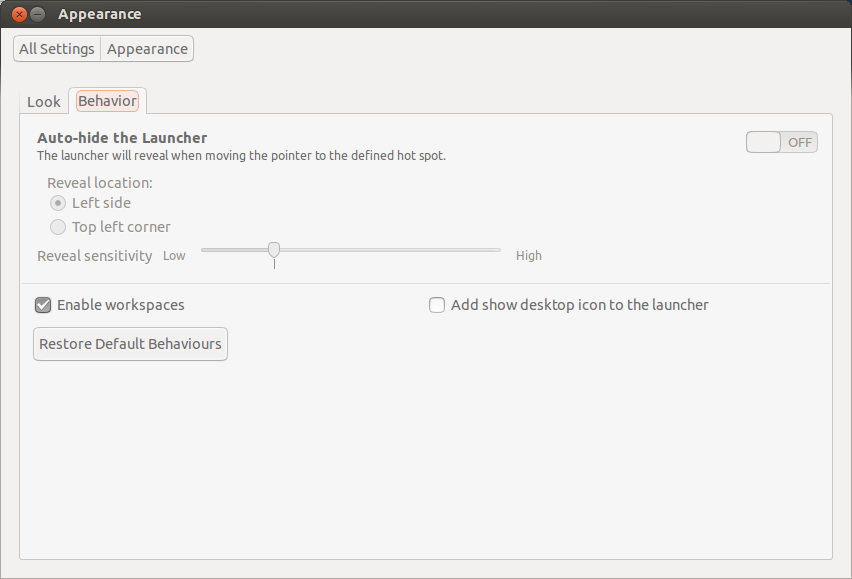
 Canonical (the makers of Ubuntu) decided to remove the highly useful workspaces on default Ubuntu installations. But have no fear, this guide re-enables the workspaces within a minute or so.
It’s actually a lot easier than i thought, so ignore below and just open Settings -> Appearance and click on Behavior. Now you can re-enable workspaces with the “Enable Workspaces”-checkbox.
I’ve also updated the screenshot to better illustrate this.
———–
First off we need to install unity-tweak-tool, either click on the link or type in the following commands in a Terminal (Ctrl + Alt + T)
sudo apt-get install unity-tweak-tool
Now open unity-tweak-tool using the Terminal:
unity-tweak-tool
In the window, click the “Workspace Settings”-icon (check the picture above) and flip “Workspace Switcher” to “On”.
Workspaces have now been re-enabled on your machine and it’s a persistent settings, so you don’t need to redo this if you reboot your machine.
Leave a Reply